Last updated: July 15, 2026
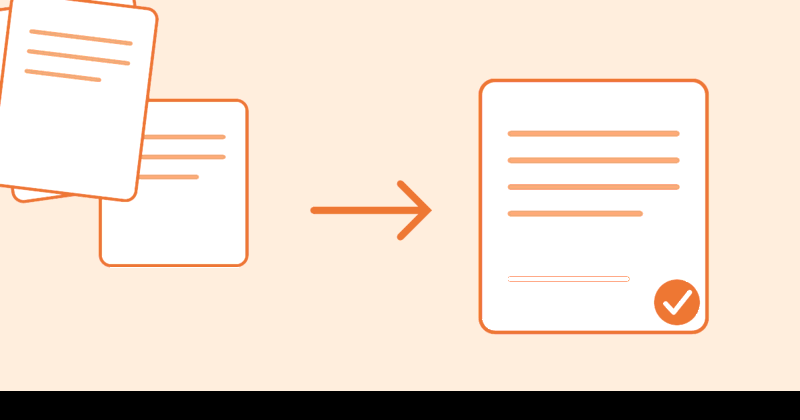
Quick answer: Upload your PDFs to a browser-based merge tool, drag them into the order you want, and download one combined file. It takes under a minute and works on any device. If you use a tool that processes files locally instead of parking them on a server, nothing you upload sticks around waiting to be someone else’s problem.
I’ve merged more PDFs than I’d like to admit. Scanned intake forms that arrive as six separate files because someone’s scanner defaults to “one page per document.” Contractor invoices that need to go to a client as a single packet instead of an email with eleven attachments. Tax season, every year, the same ritual of stitching receipts and 1099s into one file before it goes to an accountant. None of this is complicated work, but it’s exactly the kind of small, recurring task that eats ten minutes if you don’t have a fast way to do it.
Here’s the actual process, plus the questions people usually have once they start doing this regularly instead of once a year.
How do I merge PDF files online?
- Go to pdfs.online/tools/merge and select or drag in the PDFs you want to combine.
- Drag the thumbnails into the order you want the final document to read in. The first file on the list becomes the first pages of the merged PDF.
- Drop in more files if you forgot one, or remove one that snuck in.
- Click merge, then download the single combined file.
That’s it. No account, no software to install, no plugin. The files never leave your browser to sit on someone’s server. They’re processed locally and gone the moment you close the tab.
Where people usually get tripped up isn’t the merge itself, it’s the ordering. If you’ve got twelve files named scan001.pdf through scan012.pdf, don’t trust that alphabetical order matches the order you scanned them in. I’ve sent a merged contract to a client with the signature page ahead of the terms it was supposed to follow, because I assumed the file names meant something. Preview the thumbnails before you hit merge. It costs five seconds and saves you from resending a document with your name on it.
Why merge PDFs instead of just emailing several files?
A stack of loose PDFs is easy to lose track of, and it puts the organizing work on whoever receives them. One merged file does three things that eleven separate attachments don’t:
It keeps the reading order intact, so nobody has to guess whether the invoice or the receipt comes first. It’s easier to archive and search later, since you’re filing one document instead of a folder’s worth. And it’s just cleaner to hand off: sending a client a single “Project_Report_Final.pdf” reads as more finished than an email with a wall of paperclip icons.
The recurring cases I run into most:
- Scanned paperwork. Most scanners and scanning apps spit out one PDF per page or per batch. Merging turns a folder of
IMG_scan_1.pdf,IMG_scan_2.pdfinto one document you can actually file. - Contracts split for signing. When a contract gets sent out for e-signature, the signed pages sometimes come back as a separate file from the original terms. Merging puts the whole agreement back into one document before it’s archived.
- Monthly or quarterly reports. Combining individual department reports into a single packet before a board meeting, instead of forwarding six emails.
- Tax season paperwork. Receipts, 1099s, and prior statements, bundled into one file before it goes to an accountant.
- Course or research materials. Merging separate readings or chapter PDFs into a single file for a class, so students (or you) aren’t juggling a dozen tabs.
If any of that sounds familiar, merging is a five-minute habit worth having, not a one-off chore.
The contract example is the one that actually taught me to take this seriously. A vendor agreement went out for e-signature split across two files, because the signature page had been generated separately from the terms. Both came back signed, both looked complete on their own, and if I’d filed them separately, six months later someone auditing the folder would have found a signature page with no visible connection to what it was signing. Merging them the same day they came back, with a clear filename, is the kind of five-minute task that only feels unnecessary until the one time it wasn’t.
Merging PDFs on Windows, Mac, iPhone, and Android
The mechanics don’t really change by device, since a browser-based merge tool runs the same way everywhere, but a few things are worth knowing per platform:
Windows and Mac. Any modern browser handles this without an extension. On Mac specifically, people sometimes reach for Preview’s “combine” trick using thumbnails in the sidebar. It works, but only for PDFs you already have open, and it’s fussier for more than two or three files. For anything beyond a quick two-file combine, a browser tool is faster.
iPhone and Android. Browser-based merging works the same on mobile as on desktop, since the processing happens in the tab, not in an installed app. The part that’s genuinely easier on a laptop is reordering a long list of files by drag and drop; on a phone screen, double-check the final page order before you download, since it’s easy to misjudge thumbnail order on a small screen.
None of this requires installing a PDF app on any of these devices. That’s the actual advantage of doing it in a browser instead of downloading desktop software you’ll use four times a year and then forget you have.
How does this compare to iLovePDF, Smallpdf, and Adobe?
All of the well-known merge tools do the core job (upload, reorder, download) reasonably well. Where they differ is what happens to your files afterward and what the free tier actually includes.
| pdfs.online | iLovePDF | Smallpdf | Adobe Acrobat | |
|---|---|---|---|---|
| Cost to merge | Free | Free | Free (limited daily uses) | Free |
| Account required | No | No | No | No (sign-in needed to save/share) |
| File retention | Deleted within 24h (Free) / 30 days (Pro) | Server-processed, deletion policy varies by plan | Auto-deleted after 1 hour | Deleted unless you sign in to save |
| Combine with Word/Excel/images | PDF only | Yes | Yes | Yes (with account) |
| Page limit per merge | No hard cap for typical use | Plan-dependent | No stated hard cap | Up to 1,500 pages / 100 files |
The honest takeaway: for a straightforward “combine a few PDFs into one” job, any of these will get it done. The differences that actually matter are how long your files sit on a server afterward, and whether you’re comfortable creating an account just to merge a document. If you’re merging something sensitive (a contract, a medical form, a tax document), the retention policy is the detail worth reading before you upload, not just the price.
Mistakes I see people make when merging PDFs
Most merge problems aren’t technical, they’re the small oversights that only show up after you’ve already sent the file.
Trusting file names over thumbnails. I mentioned this above because it’s the mistake I’ve made myself more than once. Document (3).pdf tells you nothing about where it belongs in the final order. Look at the actual page, not the file name.
Forgetting to check page orientation before merging. If one source PDF was scanned sideways, merging doesn’t fix that. Rotate the offending pages first, or you’ll end up with a document where the reader has to turn their laptop to read page 4.
Merging drafts instead of finals. This sounds obvious until it happens to you: someone sends over “final_v2_ACTUAL.pdf” and you merge the wrong version because your downloads folder had two files with nearly identical names. Rename files with something unambiguous before combining anything you’re about to send externally.
Not naming the merged output. A file that comes out of a merge tool named merged.pdf or output (1).pdf is going to get lost in a downloads folder within a week. Rename it to something you’d recognize in six months, like 2026-Q2-client-contracts.pdf, not merged.pdf.
Assuming a merge tool works offline. Browser-based tools need an internet connection to load, even though the actual file processing might happen locally afterward. If you’re on a flight or somewhere without connectivity, merge before you go, not after you land and need the file for a meeting in ten minutes.
Frequently asked questions
Does merging a PDF lose any quality or formatting?
No. Merging doesn’t touch the content of the pages themselves, it just stitches them together into one file, so fonts, images, and layout stay exactly as they were in the source documents. This is part of what makes PDF the format it is: it’s designed to look the same regardless of what merged, split, or opened it. If your merged file looks different from the originals, the problem was in one of the source files before you ever combined them, not the merge step.
Can I merge PDFs that are password-protected?
You can, but you’ll need to unlock each protected file first. A merge tool can’t read pages it doesn’t have permission to open. If you’re working with a password-protected PDF you have the rights to, remove the password first, then merge as normal.
Can I combine a PDF with a Word document, image, or Excel file?
Depends on the tool. Some merge tools only accept PDFs; others will quietly convert a JPG or DOCX to a PDF page and slot it into the merged file. If you’re combining, say, a scanned receipt (JPG) with a typed cover letter (PDF), check whether your tool handles that directly or whether you need to convert the image to PDF first and then merge. It’s a small extra step, not a dealbreaker.
How many files or pages can I merge at once?
Most free online tools cap this somewhere, commonly a few hundred pages or a couple dozen files per merge, plus a per-file size limit in the tens of megabytes. For the volume most people are dealing with (a handful of documents, not a filing cabinet), this rarely matters. If you’re merging something unusually large, split the job into two merges and then merge the two results together.
In what order will my files appear after merging?
Whatever order you arrange the thumbnails in before you click merge. The file at the top of the list becomes the first pages of the final document. This is the single most common mix-up people run into, because file names don’t always match the order you actually want. Always glance at the thumbnail preview before downloading, especially with more than three or four files.
Can I still edit or reorder pages after merging?
Yes, but it’s a separate step. Once you have the merged file, you can rotate, delete, or reorder individual pages using a page-organizing tool. It’s easier to get the order right before merging, but nothing about a merged PDF is locked in place afterward.
Do I need Adobe Acrobat to merge PDFs?
No, and this trips people up more than it should. Adobe invented the PDF format, so there’s a reasonable assumption that you need Adobe’s own software to do anything meaningful with one. You don’t. Merging is a basic operation supported by dozens of free tools, browser-based and otherwise, that have nothing to do with Adobe. Acrobat’s merge tool is fine, but it’s built around funneling you toward a subscription for everything past the basics. That’s fine if you’re already paying for Acrobat Pro for other reasons, unnecessary if merging is the only thing you need done.
What if the merged file is too big to email?
This comes up constantly with scanned documents especially, since a stack of scanned pages can easily add up to 20-30MB even before merging. If your combined PDF is too large for an email attachment (most providers cap around 20-25MB), your options are to compress the merged file afterward, which usually cuts the size down significantly without a visible quality difference for text documents, or to share it via a link instead of an attachment. Compressing after merging, rather than compressing each source file first, is generally the better order of operations, since you only need to run one file through compression instead of several.
Is it actually free to merge PDFs, and are they private?
Merging PDFs is one of those tasks that shouldn’t require a subscription, and most tools don’t charge for it. What varies more is what happens to your files afterward. Some tools upload your documents to a server and hold onto them for an hour, a day, or until you delete them yourself. pdfs.online processes files in your browser and deletes anything uploaded within 24 hours on the free plan (30 days on Pro). That’s worth checking for any tool you use regularly, especially if what you’re merging is a contract, a medical form, or anything else you wouldn’t want sitting on a stranger’s server longer than necessary.
A five-minute habit, not a project
Merging PDFs is one of those tasks that feels like it deserves a “how-to” article mostly because nobody shows you the fast way the first time. Once you’ve done it with a decent browser tool a few times, it stops being a task you think about and just becomes the thing you do before you hit send. Merge your PDFs here, no signup required.
Leave a Reply